Everyday Guidebooks
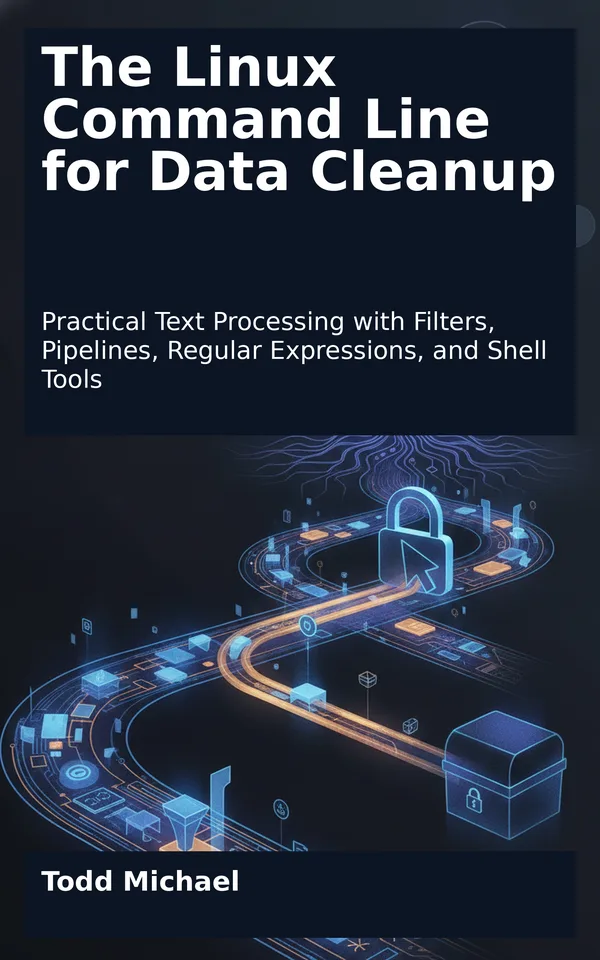
Cover of The Linux Command Line for Data Cleanup

Cybersecurity & IT

The Linux Command Line for Data Cleanup

Practical Text Processing with Filters, Pipelines, Regular Expressions, and Shell Tools

by Todd Michael

Available now

Messy logs, inconsistent records, and awkward filenames can make a simple cleanup job surprisingly difficult. The Linux Command Line for Data Cleanup shows you how to tackle those tasks with familiar tools instead of reaching for a spreadsheet or writing a large program.

Follow worked examples that build from inspecting files and filtering lines to sorting, combining, and transforming text. Practice matching patterns with regular expressions, extracting fields from delimited records, and investigating useful information in logs. Along the way, learn how quoting, careful redirection, and safe filename handling help protect your original data.

Designed for new and developing Linux users, this guide explains what each pipeline does and why its components belong together. Exercises and practical checks help you apply the techniques to your own text files and reinforce command-line skills useful in IT certification study and everyday work.

Contents
  1. 1. A Safe Workspace for Messy Data
  2. 2. Inspecting Text Before You Clean It
  3. 3. Redirecting and Connecting Commands
  4. 4. Filtering Lines with grep
  5. 5. Regular Expressions That Earn Their Keep
  6. 6. Sorting, Counting, and Removing Duplicates
  7. 7. Extracting Fields from Delimited Records
  8. 8. Transforming Text with sed and tr
  9. 9. Reshaping Records with awk
  10. 10. Combining Files and Comparing Results
  11. 11. Cleaning and Investigating Logs
  12. 12. Handling Difficult Filenames Safely
  13. Do not use this to process filenames.
  14. 13. Building Repeatable Cleanup Pipelines
  15. Clean a simple account_id/status TSV file.
  16. Usage: bash clean-accounts.sh INPUT OUTPUT
  17. Reject existing files, directories, and symbolic links, including
  18. dangling symbolic links.
  19. Read byte values as decimal numbers. The final byte must be LF,
  20. and the byte immediately before it must not also be LF.
  21. Remove NUL bytes in a temporary comparison file; any difference
  22. means that the original snapshot contained at least one NUL.
  23. Validate first and write cleaned records to a temporary candidate.
  24. A hard link creates the destination only if it does not exist.
  25. The candidate and destination are in the same parent filesystem.
  26. 14. Three End-to-End Cleanup Challenges
  27. A relative pathname beginning with a dash is unsafe as a
  28. starting point for find. Prefix relative paths with ./.
  29. Reject directories explicitly: ln normally treats a directory
  30. destination as a place in which to create a link.
  31. Also reject existing files and dangling symbolic links.
  32. The manifest records paths relative to the input directory.
  33. Recheck immediately before publication. -T also prevents GNU ln
  34. from treating a destination directory as a target directory.
  35. Other Books by Todd Michael

Read a sample: 1. A Safe Workspace for Messy Data

A text file can look simple until you need to change it. A list of names may contain extra spaces. A log may mix useful events with routine noise. A set of exported records may include blank lines, inconsistent capitalization, or filenames that make ordinary commands behave unexpectedly.

The Linux command line is well suited to this work because small tools can be combined to perform specific operations. Before combining them, though, you need a comfortable place to experiment and a clear understanding of what a command reads and where its results go.

In this chapter, you will create a practice directory, make a small data file, and work through the basic parts of a command. You will also establish a workflow that keeps a source file separate from the files you change. The examples use Bash, a common Linux shell. If your system uses a different shell, you can start Bash by entering bash at your prompt.

A terminal is the interface where you type commands and see their results. The shell reads what you type, interprets it, and runs commands. Bash is one such shell.

A prompt tells you the shell is ready for input. Yours may look something like this:

text alex@workstation:~$

It may also be much shorter:

text $

The exact appearance is not important. In this book, a leading $ represents a regular user’s prompt. Do not type it when you enter an example. For instance:

bash $ pwd

means to type pwd and press Enter. The line that appears afterward is output from the command, not another command for you to type.

Some systems use # in the prompt for an administrative account. The exercises in this chapter do not require administrator privileges. Using an ordinary account limits the reach of mistakes and helps keep practice work separate from system administration.

If a command seems to wait instead of returning to the prompt, it may be expecting more input. You will encounter commands that deliberately read from the keyboard later. For now, if you accidentally start one and cannot get back to a prompt, pressing Ctrl+C usually interrupts the running command.

Linux organizes files and directories in a tree. Your shell has a current working directory: the directory it uses as the starting point for relative paths.

Ask the shell where you are:

bash pwd

A possible result is:

text /home/alex

Your result will depend on your account and where the shell started. The command name pwd means “print working directory.”

An absolute path starts at the root of the filesystem, represented by /. The path /home/alex is absolute. A relative path is interpreted from your current working directory. For example, data-cleanup refers to a directory named data-cleanup inside the current directory.

Two short names are especially useful:

- . refers to the current directory. - .. refers to its parent directory.

The tilde character, ~, is commonly expanded by Bash to your home directory when used at the beginning of a path. You can return there with:

bash cd ~

The command cd changes the shell’s current working directory. It normally produces no output when it succeeds. Run pwd afterward if you want to confirm the change.

Start from your home directory and create a directory for the examples:

bash cd ~ mkdir -p data-cleanup/chapter01 cd data-cleanup/chapter01 pwd

The mkdir command creates directories. Its -p option creates missing parent directories as needed and does not report an error merely because the named directory already exists.

The final pwd should show a path ending in data-cleanup/chapter01. If it does not, stop and check the commands you entered before continuing.

List the directory contents with:

bash ls

A newly created directory will normally produce no output. That is not the same as a failed command: there may simply be no visible entries to list. If the directory already contains files, inspect their names before continuing. The examples below use specific filenames, and some commands would overwrite files with those names.

You can also ask for a more detailed listing:

bash ls -l

Here -l is an option that requests a long listing. It is an argument passed to ls, but its leading dash tells the command to interpret it as an option rather than as an ordinary filename. You do not need to understand every column yet; for now, notice that the listing gives you another way to see whether a file exists and how large it is.

You need some messy data to practice with. First, check whether the intended filename already exists:

bash ls -l contacts-source.txt

If ls reports that the file cannot be accessed because it does not exist, you can create it. If it already exists and you want to keep it, use a different empty practice directory rather than overwriting it.

Enter the following exactly, including the final EOF on its own line:

bash cat > contacts-source.txt <<'EOF' Name,Department,City Maya Chen,Support,Denver Owen Patel, Sales ,Boston Rosa Diaz,Support,Denver

Maya Chen,Support,Denver EOF

This creates a small comma-delimited text file with a blank line, a repeated record, and extra spaces around one department value. These are intentional features, not typing corrections to make now.

The command uses two shell features:

- > directs output into contacts-source.txt. If that file already exists, this redirection normally truncates it before the command runs. - <<'EOF' starts a here-document. The following lines become input to cat until…

More Cybersecurity & IT

Cover of The White Hat Bible, Volume 1The White Hat Bible, Volume 1Available nowCover of The White Hat Bible, Volume 2The White Hat Bible, Volume 2Available nowCover of The White Hat Bible, Volume 3The White Hat Bible, Volume 3Available nowCover of The White Hat Bible, Volume 4The White Hat Bible, Volume 4Available nowThe White Hat Bible, Volume 5Available nowCover of The White Hat Pocket GuideThe White Hat Pocket GuideAvailable now

About Todd Michael

Todd Michael is an American author and the founder of ToddMichael.tv. He writes practical, plain-English books on money, health, preparedness, technology, games, humor and more.

About the author Todd Michael · Todd Michael’s author site

Part of the ToddMichael.tv network.




