Everyday Guidebooks
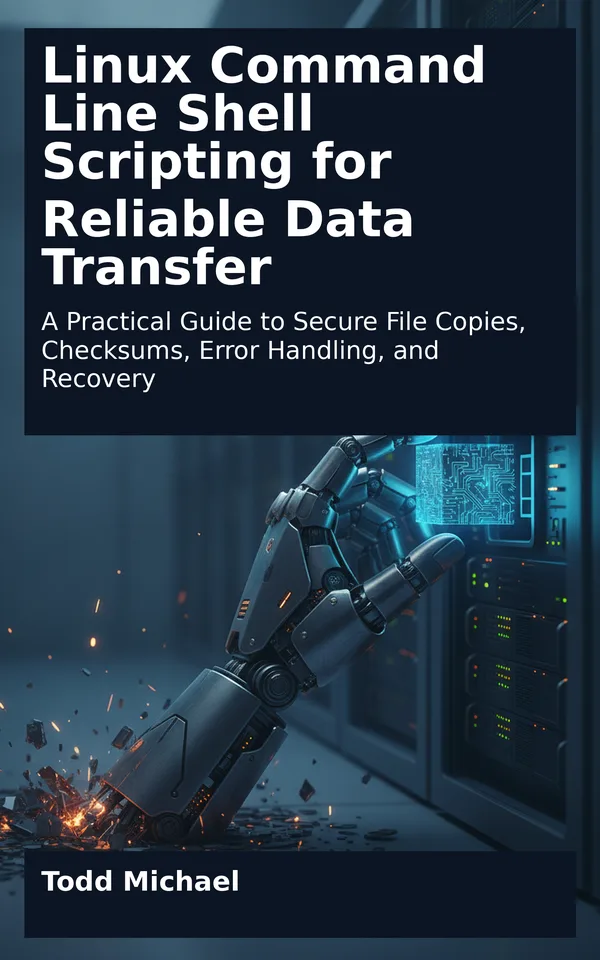
Cover of Linux Command Line Shell Scripting for Reliable Data Transfer

Cybersecurity & IT

Linux Command Line Shell Scripting for Reliable Data Transfer

A Practical Guide to Secure File Copies, Checksums, Error Handling, and Recovery

by Todd Michael

Available now

A file-copy command is easy to run. Knowing whether the right file arrived intact—and what to do when it did not—is a different skill.

Linux Command Line Shell Scripting for Reliable Data Transfer turns that problem into a practical, step-by-step learning path. Using worked examples and safe practice exercises, you’ll build scripts that transfer files securely, check exit statuses, verify checksums, and respond to interrupted runs. You’ll also learn how quoting protects filenames, why temporary files matter, and how logging and cleanup make failures easier to understand.

Each chapter builds toward a complete transfer workflow, with opportunities to test what happens when connections fail or files change. Whether you’re developing job-ready Linux skills or reinforcing concepts for an IT certification, this guide helps you reason through the risks before putting a script on a schedule.

Practice linux command line shell scripting with a clear purpose: delivering files reliably.

Contents
  1. 1. Think Like a Transfer Engineer
  2. 2. Shell Foundations for Transfer Scripts
  3. 3. Quoting Paths and Handling Filenames
  4. Do not use this to process arbitrary filenames.
  5. 4. Read and Respond to Exit Statuses
  6. 5. Prepare a Secure Transfer Environment
  7. 6. Build a First Secure Copy Script
  8. Usage: copy-one.sh LOCAL_FILE USER@HOST REMOTE_DIRECTORY
  9. Require a regular, readable local file.
  10. Keep this first script's remote syntax deliberately narrow.
  11. A relative source beginning with a hyphen must not look like an option.
  12. Avoid introducing a second slash when the directory is root.
  13. 7. Verify Files with Checksums
  14. Make a relative operand unambiguously local to scp.
  15. 8. Use Temporary Files and Safe Publication
  16. Usage: publish-local.sh SOURCE DESTINATION_DIRECTORY FINAL_NAME
  17. Policy: replace an existing regular destination file.
  18. Normalize relative paths so leading hyphens are not treated as options.
  19. FINAL_NAME must be one ordinary directory entry.
  20. Restrict the file while it is being prepared.
  21. Feed file contents on standard input so the digest output does not
  22. depend on how the checksum command represents a filename.
  23. This is the lab's publication mode, not a universal recommendation.
  24. -T treats the destination as the destination path, not a directory
  25. into which mv should place the source.
  26. 9. Make Logs Useful When Things Go Wrong
  27. Requires Bash and GNU coreutils on GNU/Linux.
  28. Usage: ./logged-publish.sh SOURCE DESTINATION_FILE
  29. Prefix relative paths so leading hyphens cannot become options.
  30. A destination ending in slash denotes a directory-like path,
  31. not a destination filename for this interface.
  32. Refuse a destination that currently resolves to a directory.
  33. GNU mv -T treats the destination as a file path, not a directory
  34. into which the staging file should be moved.
  35. 10. Clean Up Without Destroying Evidence
  36. Resolve the parent once so later cleanup uses an absolute path.
  37. Compare digests as well as checking that each command succeeded.
  38. 11. Recover from Interrupted Transfers
  39. Prefix a relative path so rsync does not interpret a leading hyphen
  40. as an option or a colon in the first path component as a remote host.

Read a sample: 1. Think Like a Transfer Engineer

A file transfer can look deceptively simple. You name a source, name a destination, and run a command. If the command returns without an obvious complaint, it is tempting to move on.

A reliable transfer asks a few more questions. Did the command read the file you intended? Did it write to the destination you intended? Are the destination’s contents the same as the source contents you meant to send? If something went wrong, would you be able to tell what happened and what remains on disk?

These questions matter whether you are copying a report between directories or sending a backup to another machine. A transfer command performs an operation; it does not automatically establish that the operation met every requirement of your workflow.

In this chapter, you will create a small local practice area, copy a file, inspect the result, and deliberately cause a few failures. No remote account is needed. The goal is to develop a habit of separating what you asked a command to do from what you can actually observe afterward.

Imagine that an application produces a daily report. A script must place that report in a directory where another process can read it. A useful definition of success has at least four parts:

- Intended source: The script selected the correct file, not an older report or a similarly named file. - Intended destination: The data arrived at the correct path, not merely somewhere on the destination system. - Integrity: The delivered content matches the content selected for delivery. - Observable outcome: The script reports success or failure in a way a person or another program can act on.

Those conditions are related, but they are not interchangeable. A copy can succeed technically while delivering the wrong file. Two files can have matching contents while residing in the wrong directory. A destination file can exist even though a previous transfer stopped before completing it.

The definition may need additional conditions in a real environment. A receiving application might require a particular filename, ownership, permissions, or publication time. It might need to avoid seeing a partially written file. Your job is to make such expectations explicit before turning a command into an unattended script.

A useful first question is: What evidence would convince me that this particular delivery succeeded? A command’s exit status is important evidence, but it is not a complete delivery record. You also need to know which paths were involved and, when integrity matters, how the contents were checked.

The examples in this chapter use Bash and ordinary local files. Open a terminal on a Linux system where you have permission to create files in your home directory. Work as your regular user, not as root.

First, move to your home directory and create a uniquely named practice directory:

bash cd ~ || exit lab=$(mktemp -d "$HOME/transfer-lab.XXXXXX") || exit printf 'Practice directory: %s\n' "$lab"

The mktemp command creates a new directory and prints its path. The shell stores that path in the variable lab. Your directory will have a different suffix from anyone else’s.

The || exit portions stop the current shell if either setup command fails. Run these setup commands in a disposable terminal session; if one fails, that session will close. The later chapters will examine status handling and shell syntax in detail.

Create separate source and destination directories, then enter the practice area:

bash mkdir "$lab/source" "$lab/destination" || exit cd "$lab" || exit pwd

The final command should print the practice directory. Keeping source and destination separate makes it easier to see what each operation changes. These are still directories on the same local system, so this lab does not test a network connection, remote authentication, or remote storage behavior.

Create a small source file and inspect it:

bash printf 'Transfer practice report\nStatus: ready\n' > source/report.txt cat source/report.txt

The redirection operator > writes the output of printf into the file. It creates the file if necessary and replaces its contents if it already exists. Here that is appropriate because the file is inside the newly created practice directory. Be much more cautious when redirecting output to a path containing data you want to keep.

Before proceeding, check that you are still working in the lab:

bash pwd ls -l source destination

You should see report.txt under source and no delivered report under destination. If your output does not make sense, stop and locate the files before running the copy. Knowing where you are is a basic transfer control, especially when paths are relative.

Copy the report to an explicitly named destination:

bash cp -- source/report.txt destination/report.txt

The -- tells cp that subsequent arguments are operands rather than options. The names in this example do not require that protection, but it is a useful habit when working with filenames that might begin with a hyphen.

Immediately inspect the command’s exit status:

bash printf 'Copy exit status: %s\n' "$?"

A status of 0 means cp reported success. A nonzero status means it reported a problem. The special shell parameter $? holds the status of the most recently completed command, so timing matters. If you run ls before checking it, $? will describe ls, not the earlier copy.

Now inspect the destination:

bash ls -l destination/report.txt cat destination/report.txt

You have several observations: the copy command reported success, a file exists at the intended destination path, and the displayed text appears correct. That…

More Cybersecurity & IT

Cover of The White Hat Bible, Volume 1The White Hat Bible, Volume 1Available nowCover of The White Hat Bible, Volume 2The White Hat Bible, Volume 2Available nowCover of The White Hat Bible, Volume 3The White Hat Bible, Volume 3Available nowCover of The White Hat Bible, Volume 4The White Hat Bible, Volume 4Available nowThe White Hat Bible, Volume 5Available nowCover of The White Hat Pocket GuideThe White Hat Pocket GuideAvailable now

About Todd Michael

Todd Michael is an American author and the founder of ToddMichael.tv. He writes practical, plain-English books on money, health, preparedness, technology, games, humor and more.

About the author Todd Michael · Todd Michael’s author site

Part of the ToddMichael.tv network.



