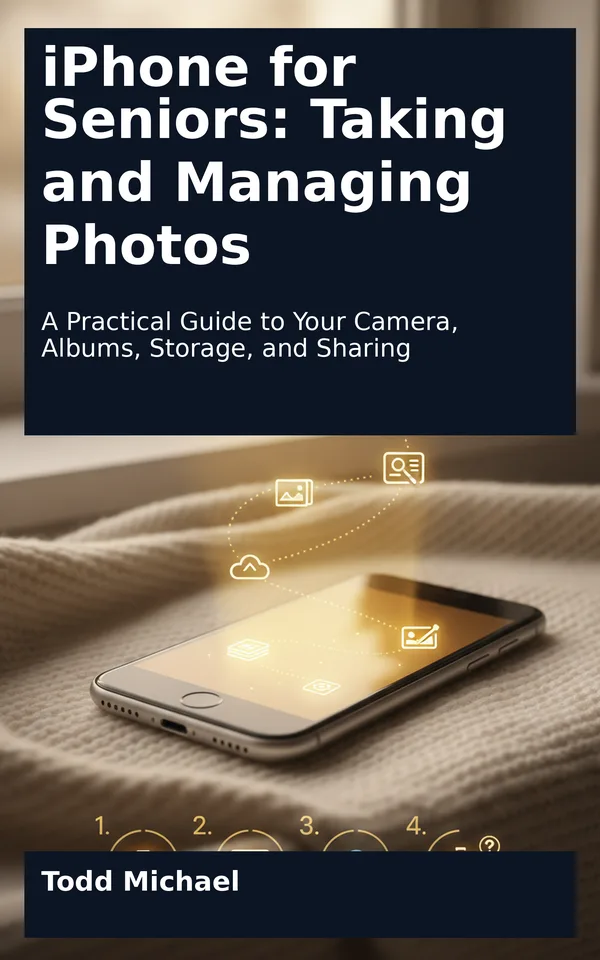
Read a sample: 1. Getting Comfortable With Your iPhone
A photograph can begin with a small moment: a grandchild’s smile, a flower opening in the garden, or a friend waving from across the table. You do not need to master every feature of your iPhone to capture it. You only need to become comfortable with a few movements and controls, then practice them at your own pace.
This chapter is your starting point. You will learn how to wake and unlock the phone, move around the screen, open and leave an app, and make some items easier to see or hear. The Camera and Photos apps will be waiting for you as you practice, but there is no need to take a picture yet. Chapter 2 will walk you through that first photograph.
Keep your iPhone nearby as you read. If a step does not look quite like the description, pause and look for the closest match. iPhone models and software versions differ, and the position or appearance of a button can change. The goal is not to memorize every screen. It is to recognize the kinds of controls you will use again and again.
Before working on the screen, take a moment to notice the physical buttons. Hold the phone comfortably with the screen facing you.
On most recent iPhones, the side button is on the right edge. It can wake the screen or put it to sleep. The volume buttons are usually on the left edge. Depending on your model, you may also have a small switch or another button on that side.
Some iPhones have a round Home button below the screen. Others have a screen that extends nearly to the bottom edge and no Home button. This difference matters when you return to the Home Screen or switch between apps. Both designs can use the Camera and Photos apps.
The phone’s cameras are small lenses on the back and front. You do not need to touch the lenses while practicing. If you use a case, check that it does not cover them.
A helpful habit is to hold the phone over a table or another soft, stable surface while you are learning. Use two hands if that feels more secure: one hand to hold the phone and the other to touch the screen. There is no prize for doing everything one-handed.
When the screen is dark, the phone may simply be asleep. Waking it lets you see the Lock Screen; unlocking it gives you access to the rest of the phone.
1. Press the side button briefly. On an iPhone with a Home button, you can also press the Home button.
2. Look at the screen. You may see the time, the date, and a small lock symbol.
3. Unlock the phone in the way you normally use: with your face, your fingerprint, or your passcode. You may need to swipe up from the bottom of the screen or press the Home button to continue.
If the phone asks for your passcode, enter the one you chose for your device. A passcode is private, so there is no need to share it with someone helping you. If you need assistance, you can enter it yourself before handing the phone over.
Once unlocked, you will usually reach the Home Screen or return to an app you were using. The Home Screen contains small pictures called app icons. An app, short for application, is a tool on your phone. Camera takes pictures; Photos helps you view and manage them; Settings lets you adjust how the phone works.
If the screen goes dark while you are reading, wake it again. This does not mean your practice has been lost. The phone is simply conserving power or waiting for you to return.
The iPhone responds to movements on its touch screen, often called gestures. A light, deliberate touch is usually enough. You do not have to press hard.
A tap is a quick touch and release with one finger. You use it to open an app, choose a button, or select an item.
Try tapping an empty area of the Home Screen first. Then tap an app icon once. If the app opens, you have done it. If nothing happens, lift your finger and try again, aiming for the middle of the icon.
A tap is different from a long press. If icons begin to wiggle or a small menu appears, you probably kept your finger on the screen a little longer than intended. Tap Done, if you see it, or tap an empty area to leave that mode. You have not damaged anything.
A swipe means placing a finger on the screen, moving it in a direction, and lifting it. You might swipe left or right to move between Home Screen pages. You might swipe up or down to move through a list.
Try this on the Home Screen:
1. Place one finger near the middle of the screen.
2. Move it toward the left, then lift your finger.
3. If another page of apps appears, swipe toward the right to return.
When you scroll through a list, the content generally moves with your finger. To see items farther down a list, swipe upward. To return toward the top, swipe downward. A short, gentle movement gives you more control than a large flick.
If you cannot find an app where you expected it, it may be on another…